
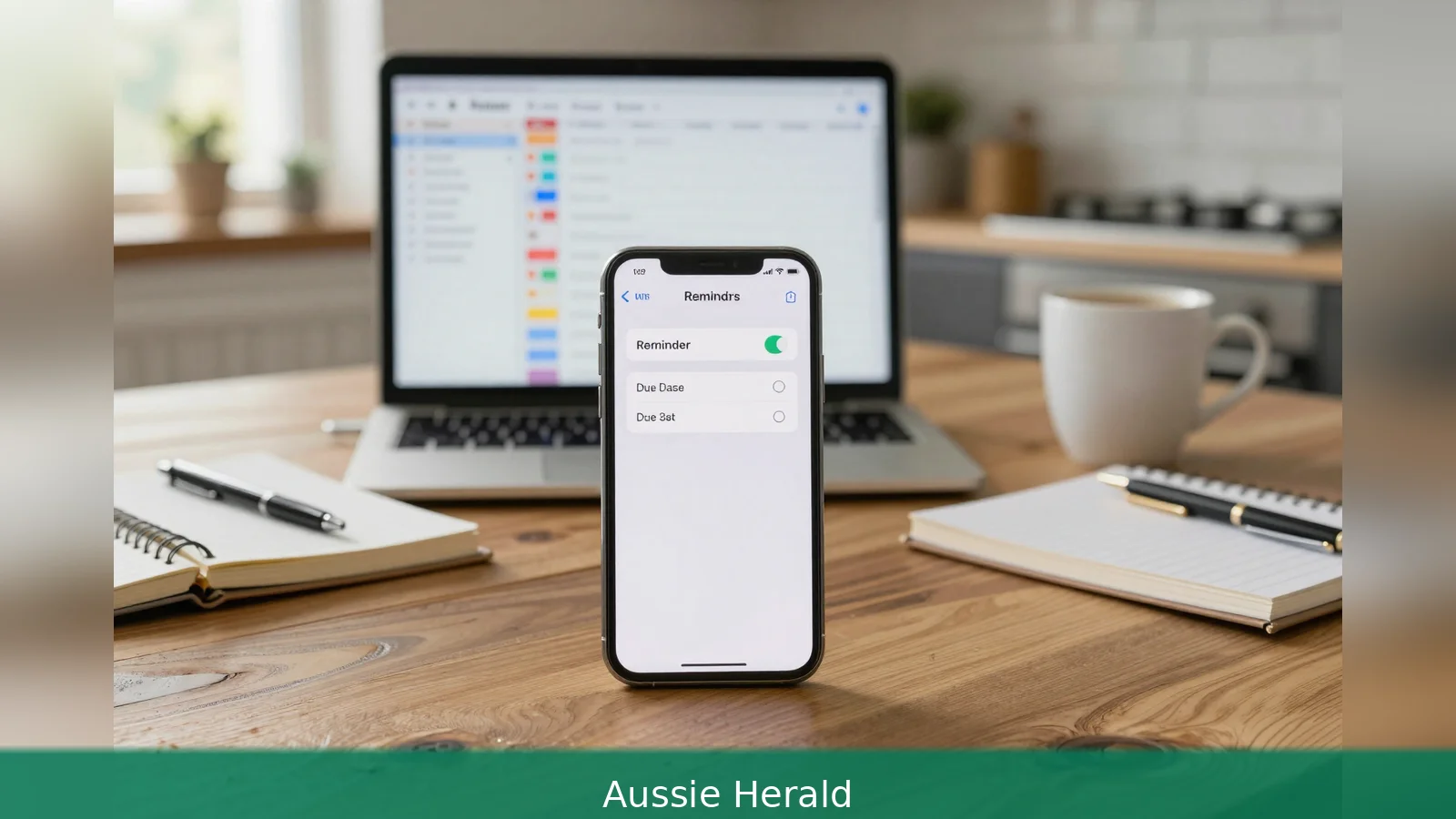
Open the i button on any reminder. That single control unlocks due dates, location and message triggers, tags, notes and attachments, plus Calendar entries, Smart Lists, shared tasks and the column-style Kanban view. This guide walks through the ten Reminders features most users miss and gives clear, device-level steps for iPhone, iPad and Mac so you can set each one up. It draws on practical how-to notes from Lifehacker, How-To Geek and Geeky Gadgets and explains where each control lives on your device.
On the surface Reminders looks stripped-back, but beneath that clean Home screen icon are project tools, message-triggered prompts, tags, Kanban columns and Calendar sync that many users miss. Below you will find the ten features readers ask about most, with the explicit UI actions the original how-to pieces point to on iPhone, iPad and Mac.
1. Create lists, sections and Kanban
Start by making separate lists for your big contexts: work projects, groceries, household jobs and so on. The core idea is separation by project or context so items don't crowd a single list. Then break long lists into Sections for visual structure. On iPhone and Mac, open a list, choose the list menu, select Add Section, give it a title and then move reminders into that section. Sections are simple, but they're the building blocks for Kanban columns and for creating repeated templates later.
Worked example: make a Home list, then add sections called "Repairs" and "Renovation" so related reminders stay grouped. Lifehacker emphasises this split as the first step to turning a loose checklist into something you can actually act on.
One way to track progress is to treat each section as a Kanban column. Create sections for each workflow stage and then switch the list to column view. On Mac the columns are easiest to scan, while the iPhone lets you scroll sideways between columns. Create sections, then select the option to view the list as columns and each section becomes a column you can move cards between. Treat columns as To Do, In Progress and Done to make status visible at a glance.
Worked example: for a remodel project create sections named Idea, Planning, Doing, Done, then switch the list to columns and drag items across as work progresses. Lifehacker notes the Mac is the most comfortable place to review a column-style list because of the wider screen.
2. Add dates, recurrences, and triggers
Assigning a due date and time is how a note becomes an actionable reminder that can alert you. On iPhone tap the small i button beside a reminder to open details and set a due date and time. When composing a new reminder on iPhone you can also tap the Calendar item above the keyboard to pick a date quickly.
Reminders supports recurring schedules, both interval-based recurrences such as every four weeks and fixed-date recurrences such as the 28th of each month, which is handy for bills and routine tasks.
Worked example: set a due date and make it recur monthly on the 28th for a credit card payment so the task reappears automatically. How-To Geek highlights those two recurrence styles as the practical difference you need when you want a task to repeat on an exact calendar day versus at regular intervals.
Context-based prompts reduce the need for time-based alerts. Use the Location and When Messaging options in the reminder details screen. Create a reminder, tap the i button, scroll to the bottom and enable the When Messaging toggle, then pick the contact. The next time you text that person via iMessage, Reminders will notify you. Location triggers are set on the same details screen and fire when you arrive at or leave an address.
Worked example: create a reminder to ask a flatmate about the lease, enable When Messaging with the flatmate as the contact, and the prompt appears when you next text them. Lifehacker points out that message and location triggers let you rely less on clock-based alerts for tasks tied to people and places.

3. Add detail, sort, tags and Smart Lists
Store supporting information inside a reminder so the alert contains context. The Notes field holds long-form information, and URLs entered in the note become tappable links beneath the title. You can add images from your photo library or use your iPhone camera to scan a document directly into the reminder, which keeps receipts, instructions or forms attached to the task.
Worked example: add a link to a booking confirmation in the notes and scan the paper receipt into the same reminder. How-To Geek highlights these attachments as a way to reduce app switching when you act on a task.
When you want automatic ordering instead of manual drag-and-drop, pick a sort method. Open a list, tap the ellipsis menu, select Sort By and choose criteria such as Creation Date or Due Date. Bear in mind that if anyone manually moves items after you set a sort order, Reminders flips that list back to Manual sorting. That behaviour matters on shared lists because a collaborator who drags one item will change the list for everyone.
Worked example: sort a shopping list by Creation Date so newly added items sit at the top for a quick store run. How-To Geek warns that manual rearrangement undoes automated sorting, so communicate expectations with people you share lists with.
Tags let you label reminders so you can filter across multiple lists. Create tags such as Work, Urgent, Shopping or Errands and apply them to reminders wherever they live. Then use Smart Lists to gather reminders dynamically based on rules like tag membership, due date ranges or completion status. Smart Lists update automatically as items change and create persistent views such as Today, This Week or a shopping-focused view pulled from several project lists.
Worked example: tag items from Home, Groceries and Projects with the tag Shopping, then build a Smart List that shows anything tagged Shopping and due this week. Geeky Gadgets and How-To Geek point out that Smart Lists and templates save setup time for recurring projects, but they also note that Smart Lists only surface items that match your rules.
4. Share, sync and capture
Shared lists are an easy way to coordinate household or small-team work. Use the Share option at the top of a list to invite other Apple users to contribute. Once a list is shared, open a reminder’s details and use the assign option to give an item to another person on that list. Shared lists sync over iCloud so additions and assignments appear on each participant's devices.
Worked example: share a shopping list with a partner, then assign the fresh produce items to them and the pantry items to yourself. Geeky Gadgets and How-To Geek both highlight the sync behaviour and the sorting caveat: when multiple people rearrange items, anyone who drags an item will change the sort order for the whole group.
Reminders with a due date and time appear automatically in the Calendar app as entries with a checkbox. You can create a task from inside Calendar by tapping the Plus button and switching to the Reminder tab, or drag a task inside Calendar to move its scheduled time. That keeps your appointments and time-sensitive tasks in the same planner so you can spot conflicts and free slots at a glance. Calendar integration is enabled by default when you set a date and time on a reminder.
Worked example: schedule a block in Calendar for two hours of focused work, then create linked reminders within that block so the tasks are visible in the same timeline. Lifehacker notes that seeing tasks alongside meetings is the practical advantage of this integration.
Capture hands-free by asking Siri to create a reminder, including time or location modifiers in the voice command. On iPad and Mac you can drag emails, notes or links into Reminders to create tasks prepopulated with that content. Use quick capture for fleeting items you want to process into organised lists later. Cross-device capture plus iCloud sync keeps entries consistent across iPhone, iPad and Mac.
Worked example: tell Siri on your iPhone to remind you to "call the accountant tomorrow at 9am" and the reminder appears with the time set. Geeky Gadgets highlights drag-and-drop on iPad and Mac as the easiest way to turn an email or link into a task with context already attached.
If you want loud, unmistakable alerts for critical items, assign a specific due time and rely on audible notifications because Reminders' time-based alerts are what generate sounds. Templates and Smart Lists reduce setup work for recurring projects, but remember Smart Lists are rule-driven so items that fall outside the rules won't appear. When multiple people share a list, anyone who reorders items will change the sort order for the group, and sorted lists revert to Manual if someone drags an item after an automated sort is set.
Cross-device consistency is handled by iCloud sync. Use iCloud-synced lists when you expect to move between iPhone, iPad and Mac during the workday. Some features, notably the column-style Kanban view, are more comfortable on Mac because of the screen size, while mobile interfaces support quick scanning and on-the-go triggers such as When Messaging and location alerts. When you open a reminder's details using the i button you will find the same controls across devices for due date, time, location, When Messaging, tags, notes and attachments, and those controls are the gateway to Calendaring, Smart Lists, sharing and Kanban views described above.
Where these tips came from: the practical UI steps and the feature list above follow how-to coverage from Lifehacker, hands-on notes from How-To Geek and workflow tips collected by Geeky Gadgets. Use them as an operational map rather than a feature wish list: Reminders has power, but it expects you to set up lists, sections and rules before that power becomes useful.
Related Articles
- How to claim JobSeeker: start 13 weeks early and avoid delays
- Startups that pay customers: 6-step playbook
- Local coding agent on macOS: 6 steps to run offline
Open a reminder's details with the i button and set the key switches for due date, time, location, When Messaging, tags, notes and attachments. Those settings are the gateway to Calendar entries, Smart Lists, shared assignments and the column-style Kanban view. Set your lists once and Reminders will do the organising for you.
This article was created with AI assistance.


